1. Introduction & Features
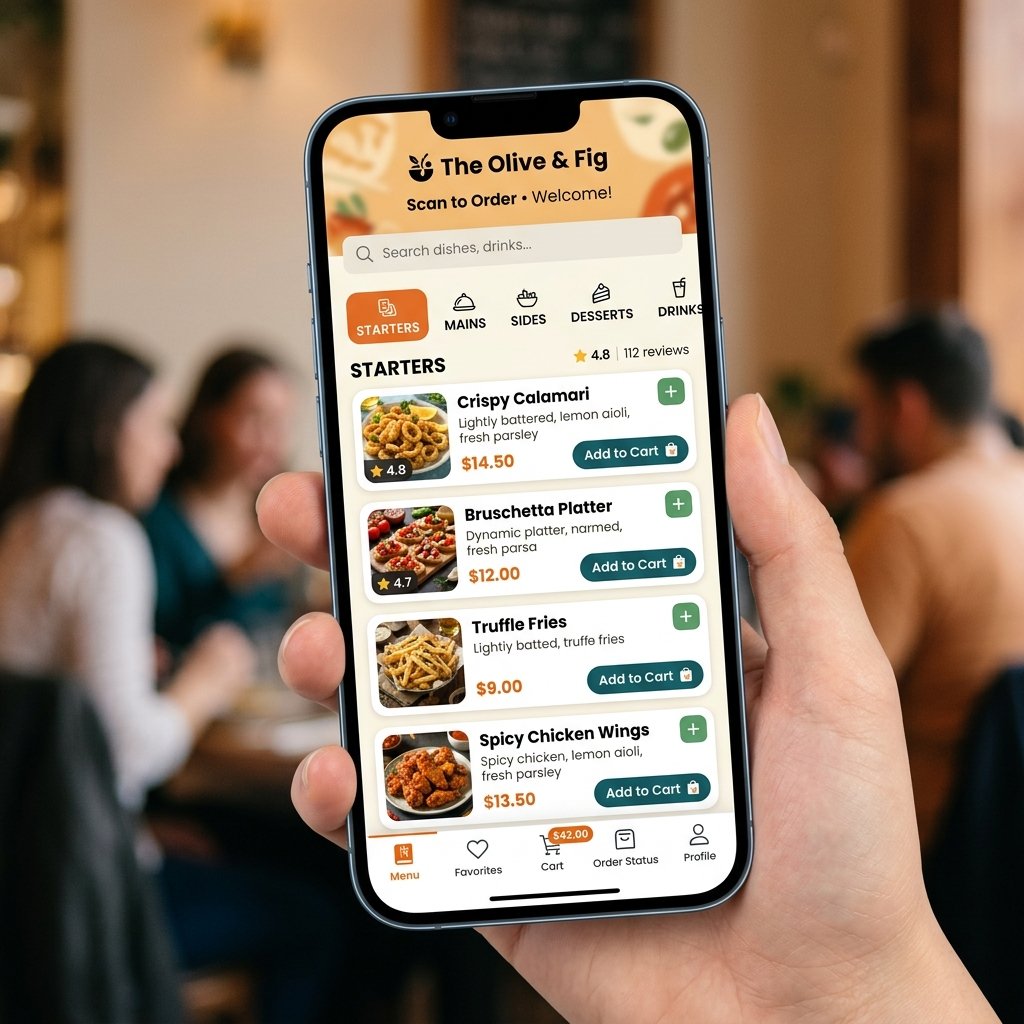
ScanDine is a multi-tenant QR menu & ordering platform for restaurants. Diners scan a QR code at their table, browse the menu, place an order, and the order appears instantly on the kitchen display and can be forwarded to the restaurant's WhatsApp — no app to install for the customer.
- Super-admin Manage restaurants, subscription plans, coupons, global settings and payment logs.
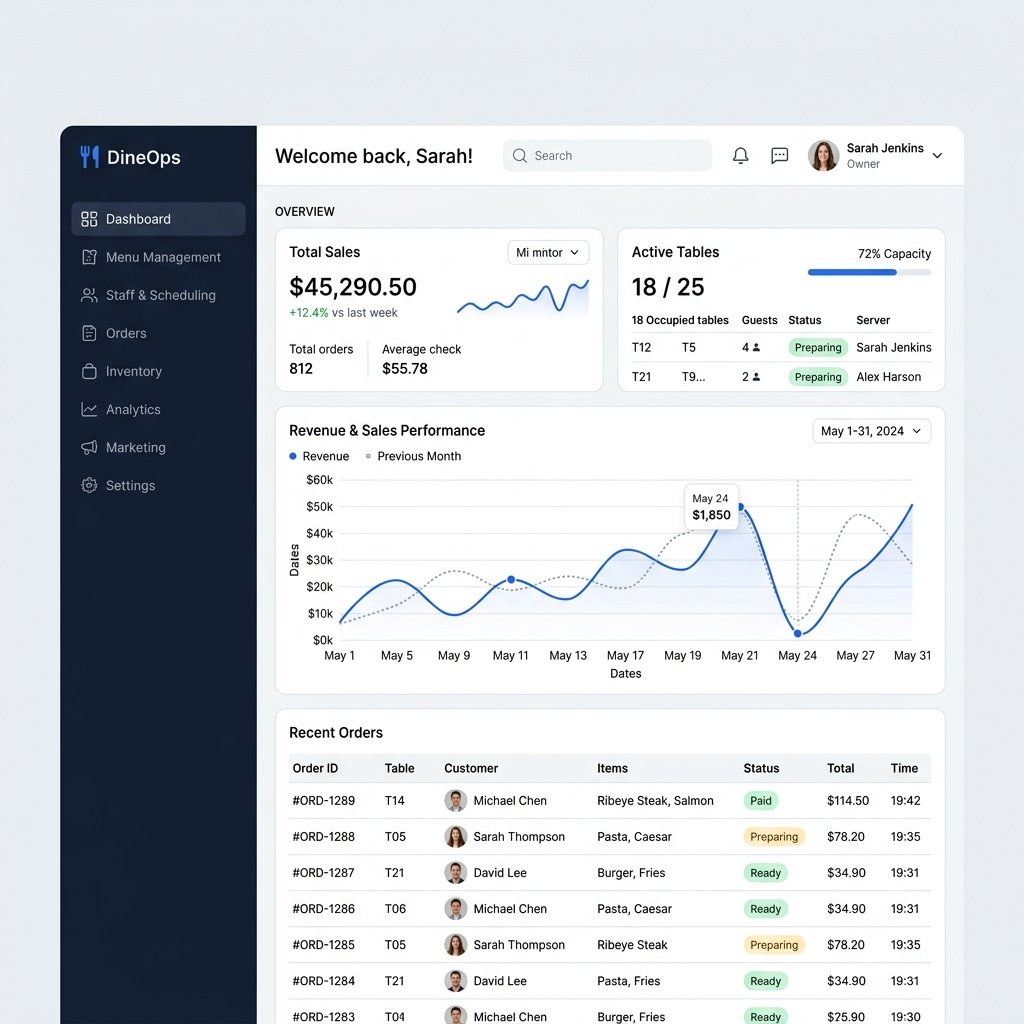
- Owner Branches, menu categories & items, per-table QR codes, orders, staff, reports and billing.
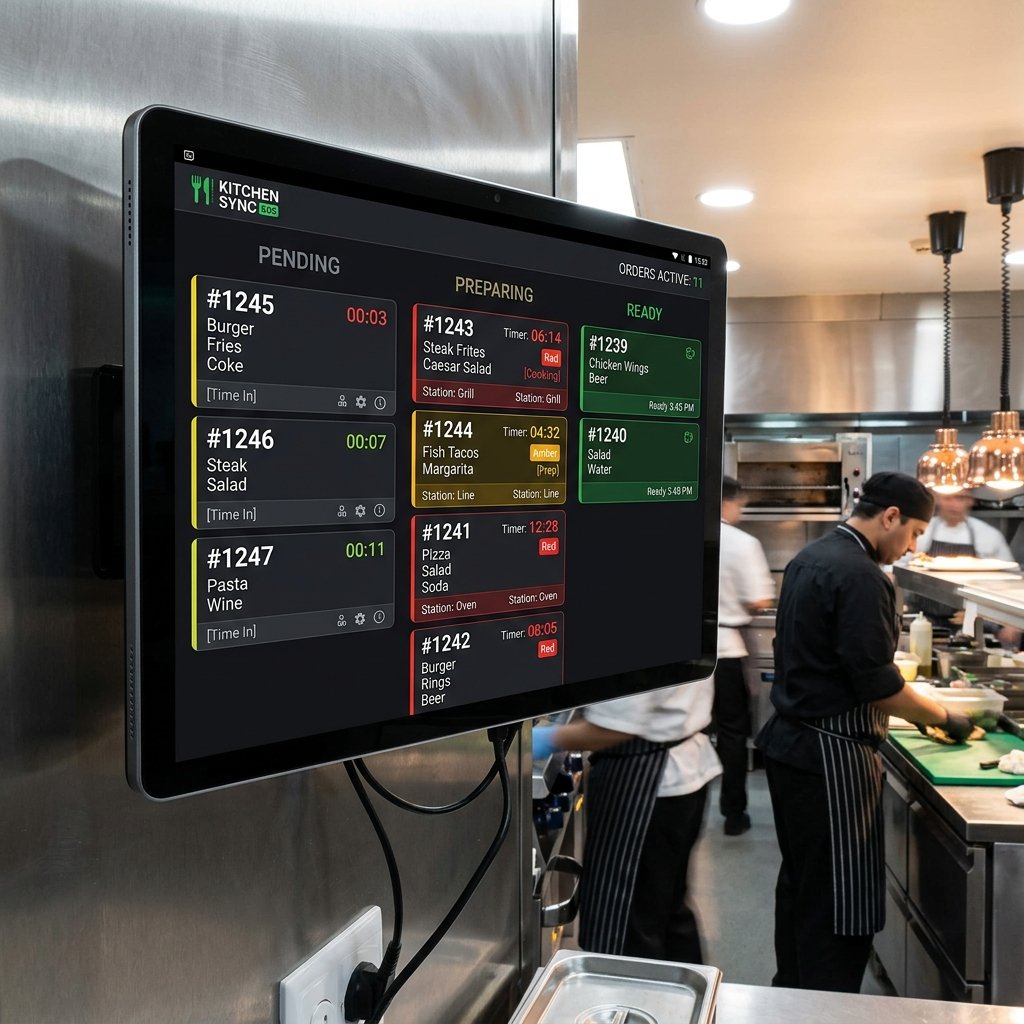
- Staff Live kitchen display with one-tap status changes (preparing → ready → served).
- Customer Scan → menu → cart → order, with optional table number — no login.
- Stripe and PayPal subscriptions with plan limits enforced in code.
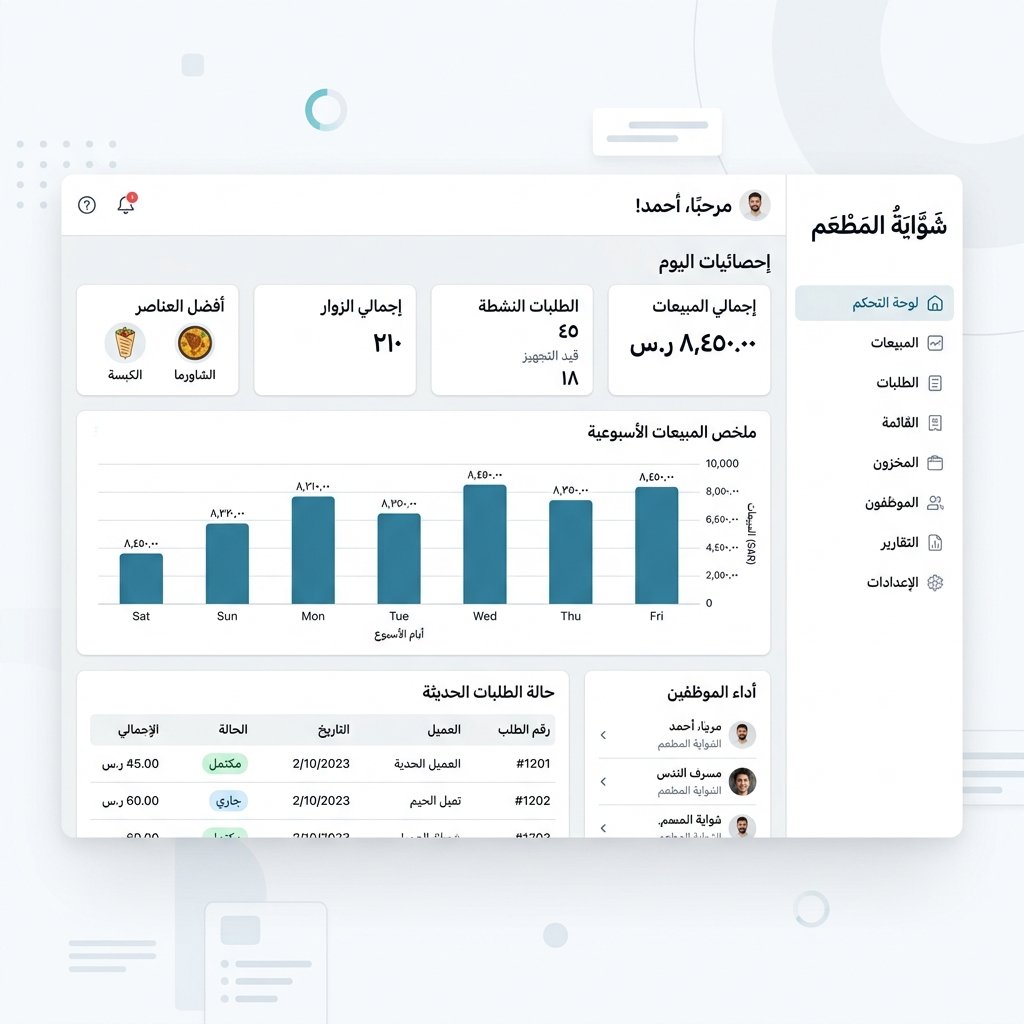
- Multi-language (English + Arabic RTL included), light/dark theme, currency per restaurant.
2. Server Requirements
| Component | Minimum |
|---|---|
| PHP | 8.2 or higher |
| Database | MySQL 8.0+ (or MariaDB 10.6+) |
| PHP extensions | pdo_mysql, mbstring, openssl, tokenizer, xml, ctype, json, bcmath, fileinfo |
| Web server | Apache or Nginx with URL rewriting |
| Node (build only) | 18+ — only needed if you recompile assets |
Compiled CSS/JS ship in public/build, so you do not need Node on the production server unless you customise the design.
3. Installation (Web Wizard)
The easiest way to install ScanDine is the built-in wizard.
- Upload the contents of
main-files/to your server. Point your domain's web root at thepublic/folder. - Create an empty MySQL database and a database user with full privileges on it.
- Run
composer install --no-dev --optimize-autoloaderin the app folder. - Visit
https://your-domain.com/installin a browser. - Step 1 — Requirements: the wizard checks PHP, extensions and folder permissions. Resolve any red items.
- Step 2 — Database: enter your DB host, name, user and password. The wizard tests the connection before continuing.
- Step 3 — Application: set the app name, URL, timezone, and create your super-admin account. Migrations run automatically.
- Step 4 — Payments (optional): paste Stripe / PayPal keys, or skip and add them later.
- Step 5 — Done: the installer locks itself and you can sign in.
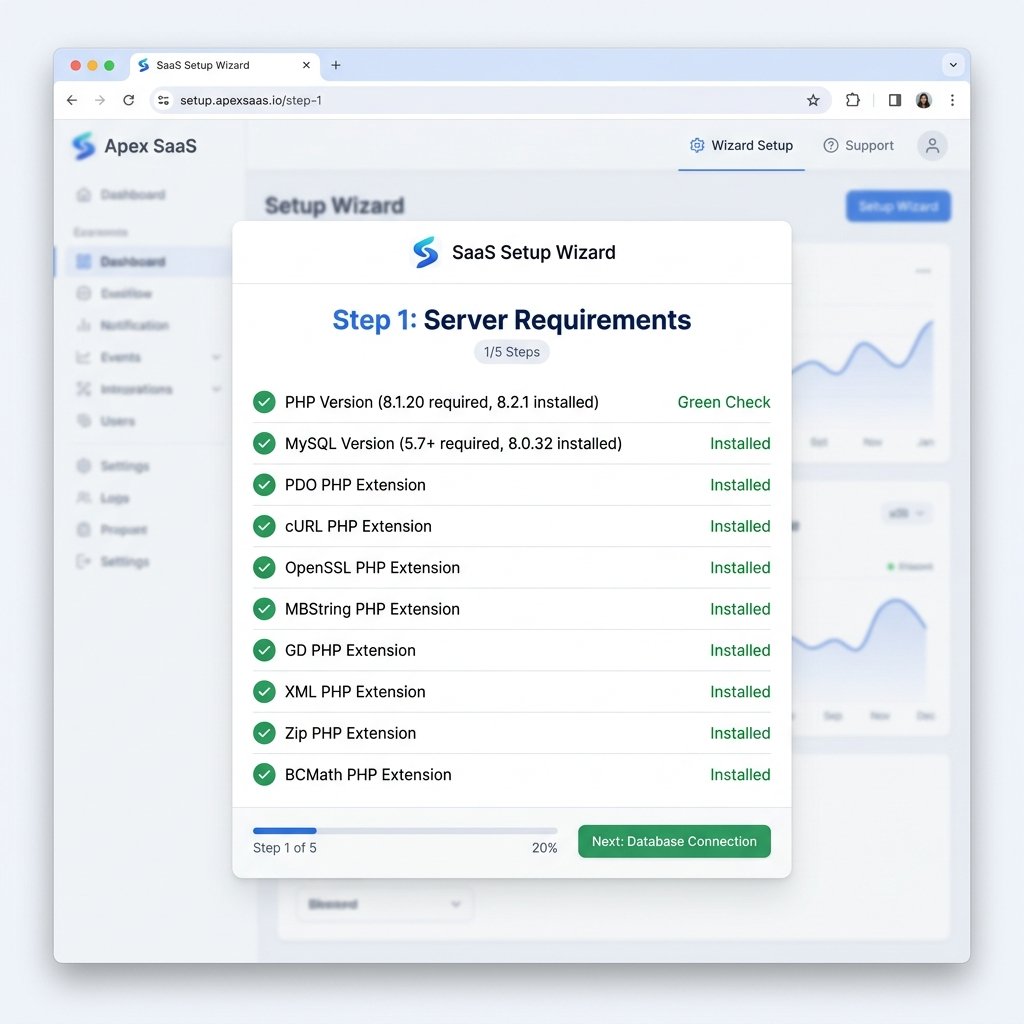
After installation the wizard is permanently disabled by a lock file at storage/app/scandine_installed.lock. Delete that file only if you intend to reinstall.
4. Manual Installation (Advanced)
cp .env.example .env
composer install --no-dev --optimize-autoloader
php artisan key:generate
# edit .env: set DB_* and APP_URL
php artisan migrate --force
php artisan db:seed --class="Database\Seeders\PlanSeeder" --force
php artisan storage:link
# create your admin:
php artisan tinker
>>> \ScanDine\Models\User::create(['name'=>'Admin','email'=>'you@example.com','password'=>bcrypt('secret'),'role'=>'super_admin','is_active'=>true]);
To load the full demo dataset instead, run php artisan db:seed.
★ License & Activation
ScanDine uses your Envato purchase code to activate each installation, in line with Envato's licensing policy.
Where to find your purchase code
On CodeCanyon, open Downloads, find ScanDine, and click “License certificate & purchase code” → PDF or text. The code looks like xxxxxxxx-xxxx-xxxx-xxxx-xxxxxxxxxxxx.
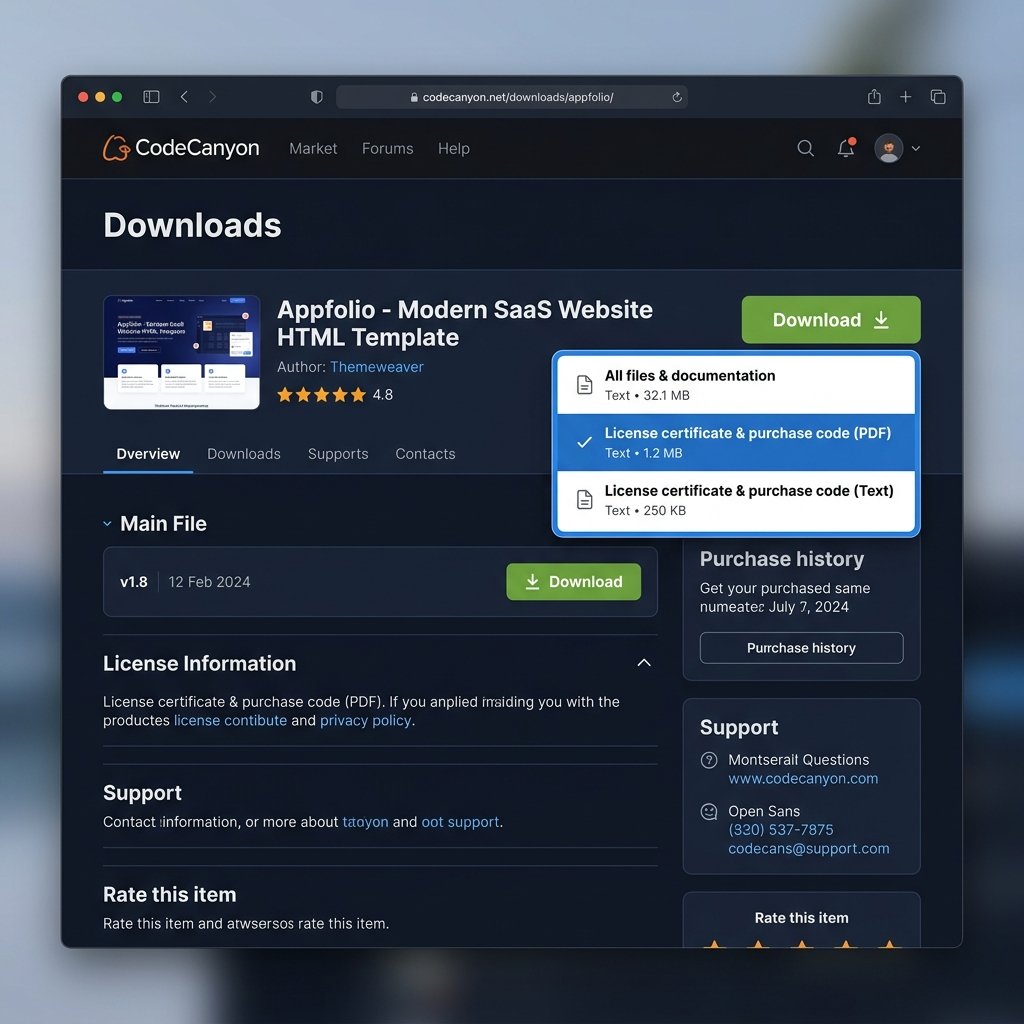
Entering it during installation
The installer's License step asks for the code. It is verified once against Envato; on success the install continues. After installation you can review it under Super-admin → License.
“Supported until” — what it means
This is your Envato support period, not an app expiry. The application keeps working after this date — only your access to author support changes. The purchase code remains valid for the lifetime of the item license.
Moving to a new server / domain
Open Super-admin → License → Deactivate on the old domain, then run the installer (or the /license-required page) on the new domain and enter the same purchase code.
Offline behaviour
Activation is checked against a single local database row on every page load — no internet call is made during normal use. A courtesy re-verification runs at most once every 30 days and never blocks the app, so ScanDine continues to work offline or on poor connections.
★ Dynamic Settings (no .env edits)
After installation, every setting — SMTP, Stripe, PayPal, branding and logos — is configured at runtime from the UI. No file edits, no restarts. Settings resolve in this order, most specific wins:
Restaurant override → System default (super-admin) → .env / built-in default- Super Admin → Settings sets global defaults for the whole platform.
- Owner → Settings sets per-restaurant overrides (branding, logo, and an optional SMTP override).
- Secrets (SMTP password, API secret keys, webhook secrets) are encrypted at rest and shown masked as
••••••••with a one-click Reveal that re-masks after 30 seconds.
The .env / SCANDINE_* keys below are only a fallback for first boot. Once installed, manage everything from the in-app Settings screens.
5. Stripe Setup
The recommended way is Super Admin → Settings → Stripe: paste your keys, toggle Enable Stripe, and use Test connection to confirm. Keys are stored encrypted in the database. The .env values below are only a first-boot fallback.
- Create a Stripe account and open the Developers → API keys page.
- Copy the Publishable key and Secret key into the installer (or
.env):SCANDINE_STRIPE_KEY=pk_live_xxx SCANDINE_STRIPE_SECRET=sk_live_xxx SCANDINE_STRIPE_WEBHOOK_SECRET=whsec_xxx - In Developers → Webhooks, add an endpoint pointing to
https://your-domain.com/webhooks/stripe. - Subscribe to:
checkout.session.completed,customer.subscription.created,customer.subscription.updated,customer.subscription.deleted,invoice.payment_succeeded,invoice.payment_failed. - Copy the endpoint's signing secret into
SCANDINE_STRIPE_WEBHOOK_SECRET.
Every webhook is signature-verified. Unsigned or tampered requests are rejected with HTTP 400.
6. PayPal Setup
- In the PayPal Developer Dashboard, create a REST API app and copy its Client ID and Secret.
- Set the credentials and mode:
SCANDINE_PAYPAL_CLIENT_ID=xxx SCANDINE_PAYPAL_SECRET=xxx SCANDINE_PAYPAL_MODE=live # or sandbox SCANDINE_PAYPAL_WEBHOOK_ID=xxx - Add a webhook for
https://your-domain.com/webhooks/paypaland subscribe toBILLING.SUBSCRIPTION.ACTIVATED,BILLING.SUBSCRIPTION.CANCELLED,PAYMENT.SALE.COMPLETED. - Copy the webhook ID into
SCANDINE_PAYPAL_WEBHOOK_ID— it is used to verify each event with PayPal.
As with Stripe, the preferred place to enter these is Super Admin → Settings → PayPal, where the client secret and webhook ID are stored encrypted and a Test connection button verifies the credentials.
★ SMTP Email Setup
ScanDine sends transactional emails (new-order alerts, payment receipts, expiry reminders, signup notices) through an SMTP server you configure entirely from the UI — no .env editing required.
- Open Super Admin → Settings → Email / SMTP.
- Enter your Host, Port (587 for TLS, 465 for SSL), Encryption, Username and Password, plus the From address and From name.
- Click Send test email, enter a recipient, and confirm it arrives. The result shows inline.
The password is stored encrypted. Mail is built from these database values at send time, so changes take effect immediately with no restart.
Per-restaurant override
An owner can send their own order emails from their own mailbox: Owner → Settings → Email, turn off “Use global SMTP settings”, and enter the restaurant's SMTP details. Leave it on to inherit the platform default.
If no SMTP host is configured, ScanDine falls back to the framework's default mailer (the MAIL_* driver in .env) so the app never errors on unset credentials.
★ Branding & Logo Setup
Branding is dynamic at two levels — global (super-admin) and per-restaurant (owner).
Global branding (Super Admin → Settings → Branding)
- App name — used in page titles and the admin panel.
- Logo & favicon — drag-and-drop upload (JPG, PNG, WebP, SVG · max 2 MB). The new logo appears in panel headers immediately.
- Brand colour — pick from presets or a custom hex; used for accents.
- Tagline, support email, support phone.
Per-restaurant branding (Owner → Settings → Branding)
- Restaurant logo — shown on the customer menu header, order confirmation, kitchen display and the owner sidebar. If none is uploaded, a clean initials avatar is generated automatically.
- Brand colour — applied only to the customer menu (buttons and active tabs) via a runtime CSS variable; it does not affect the admin panel.
- Tagline — shown under the restaurant name on the menu.
Uploaded files are stored under storage/app/public/branding and served through the storage symlink — never from an executable path. Run php artisan storage:link once after install.
7. WhatsApp Setup
WhatsApp hand-off uses the free click-to-chat link — no paid WhatsApp Business API required.
- Set the restaurant's WhatsApp number in Owner → Settings (or per-branch).
- When a customer places an order, the confirmation screen shows a “Send order via WhatsApp” button that opens WhatsApp with the order pre-filled, addressed to the venue.
Disable the feature globally with SCANDINE_WHATSAPP_ENABLED=false.
8. Multi-language & RTL Setup
English and Arabic (RTL) ship out of the box. The UI language follows the restaurant's locale, and visitors can switch language using the toggle in the header.
Adding a language
- Create
lang/<code>.jsonby copyinglang/ar.jsonand translating the values. - Register it in
config/scandine.phpunderlocales, settingdirtortlorltr.
9. Adding Your First Restaurant (Super-admin)
- Sign in with your super-admin account at
/login. - Create subscription Plans (or use the seeded Starter / Professional / Enterprise).
- Create the restaurant's owner account from tinker or let the owner self-onboard, assigning
role = ownerand therestaurant_id. - From Restaurants you can view any tenant and activate / suspend it.
10. Owner Panel Guide
- Branches — add each physical location.
- Menu categories & items — build the menu; items support an image, tags, price and availability toggle.
- Tables & QR — create tables and download a printable QR code for each (it links to a signed, tamper-proof menu URL).
- Orders — filter by status, open an order, change its status.
- Staff — create kitchen / waiter / manager accounts and assign them to branches.
- Reports — 30-day orders and revenue, plus top-selling items.
- Settings — currency, language, theme, timezone and logo.
11. Staff Kitchen Display Guide
The kitchen display (/kitchen) shows three live columns — Pending, Preparing, Ready. It refreshes every few seconds with no page reload and needs no websocket server. Tap a card to advance the order.
12. Subscription Plans & Billing
Each plan defines limits: branches, menu items, monthly orders and staff. Limits are enforced in code — attempting to exceed one shows a friendly upgrade prompt. Owners subscribe from Billing, choosing Stripe or PayPal. Webhooks keep the local subscription in sync and log every payment event to the super-admin's Payment logs.
13. Troubleshooting
| Symptom | Fix |
|---|---|
| Blank page / 500 error | Check storage/logs/laravel.log; ensure storage and bootstrap/cache are writable. |
| “Route [scandine.login] not defined” | Run php artisan route:clear then php artisan optimize. |
| Assets not loading | Confirm public/build was uploaded and run php artisan storage:link. |
| QR opens “403” | The signed link expired or the domain changed; regenerate the QR after fixing APP_URL. |
| Installer keeps redirecting | The lock file is missing; finish the wizard or create storage/app/scandine_installed.lock. |
| Migrations fail | Verify MySQL 8+ and that the DB user can create tables. |
| Stripe webhook 400 | Wrong SCANDINE_STRIPE_WEBHOOK_SECRET; copy the exact signing secret. |
| Emails not sending | Configure the MAIL_* settings in .env. |
| Wrong currency symbol | Set the restaurant currency (ISO code) in Owner → Settings. |
| Cannot delete a plan | Plans with active subscriptions are protected; move tenants first. |
14. FAQ
Do customers need an app?
No. They scan the QR and order in the browser.
Can one restaurant have several branches?
Yes — branch count is governed by the subscription plan.
Is my data isolated from other restaurants?
Yes. Every tenant query is automatically scoped to its own restaurant at three layers (global scope, middleware and policies).
Can I use only Stripe, or only PayPal?
Yes — configure whichever you want; only configured gateways appear at checkout.
Can I rebrand it?
Yes — entirely from the UI. Super Admin → Settings → Branding sets the app name, logo, favicon, colour and tagline at runtime. No code or .env changes needed.
Do I have to edit .env to change SMTP or payment keys?
No. After install, SMTP, Stripe, PayPal, branding and logos are all managed from the in-app Settings screens and stored (encrypted, for secrets) in the database. Changes apply instantly without a restart.
Can each restaurant have its own logo and colours?
Yes. Owners upload their own logo and pick a brand colour in Owner → Settings → Branding; it applies to that restaurant's customer menu only, fully isolated from other tenants.
Are my API keys and passwords stored safely?
All secrets (SMTP password, Stripe/PayPal secret keys, webhook secrets) are encrypted at rest with Laravel's encrypter and never rendered in HTML — they show masked with an authenticated, time-limited Reveal.
Does the app stop working if I go offline?
No. After the one-time activation, the licence check reads only the local database, so ScanDine keeps working offline and on unreliable connections. It is never silently disabled.
15. Changelog
v1.0.0 — Initial Release
- Multi-tenant QR menu & ordering platform.
- Super-admin, owner, staff and customer experiences.
- Stripe & PayPal subscriptions with signature-verified webhooks.
- Per-table QR generation, live kitchen display, WhatsApp hand-off.
- English + Arabic (RTL), light/dark theme, per-restaurant currency.
- Fully dynamic settings: SMTP, payment gateways, branding & logos configured at runtime from the UI — no
.envedits or restarts. - Encrypted secret storage with masked reveal; cached settings resolver with per-tenant overrides.
- Web installer wizard and rich demo data.